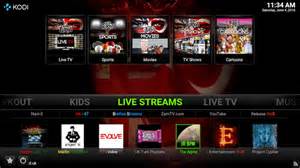
Pulse CCM Build contains lots of addon options. Live TV IPTV, Movies, Sports, TV Shows, and more. You will need to enter a pin code via the Ares Wizard to access this build.
As with any build, it is best to start with a fresh start of Kodi.
Install Pulse CCM Build:
- Do a fresh install of Kodi as builds always work better when nothing else is installed
- This build requires a PIN. Get the PIN from here
- Open Kodi
- Select SYSTEM > File Manager
- Select Add Source
- Select None
- Type the following EXACTLY http://areswizard.co.uk and select Done
- Highlight the box underneath Enter a name for this media Source, type ares and select OK
- Go back to your Home Screen
- Select SYSTEM
- Select Add-Ons
- Select Install from zip file
- Select ares
- Select script.areswizardx.x.xx.zip
- Wait for Add-on enabled notification
- Go back to your Home Screen
- Select PROGRAMS
- Select Ares Wizard
- Select Browse Builds
- Select Pulse
- Select Enter Pin and enter the PIN you got from the link at the beginning of the guide
- Enter 4 Digit PIN
- Select Pulse CCM. (You may want to try some of the other builds listed too)
- Select Install
- The build will start to download and then the build files will start to extract.
- When asked if you would like to backup your skin/profile, I would select no.
- Select OK when the Kodi Force Close prompt appears
Once Kodi closes, reopen Kodi and you will see 2 profiles. Select CCM and the CCM profile will load.
 ANDROID TV TECH